6. Authorizing Licenses
Licenses can be authorized with online or offline authentication as described below.
Caution
You need to add a license to the server before it can be authorized.
6-1. Online Authentication
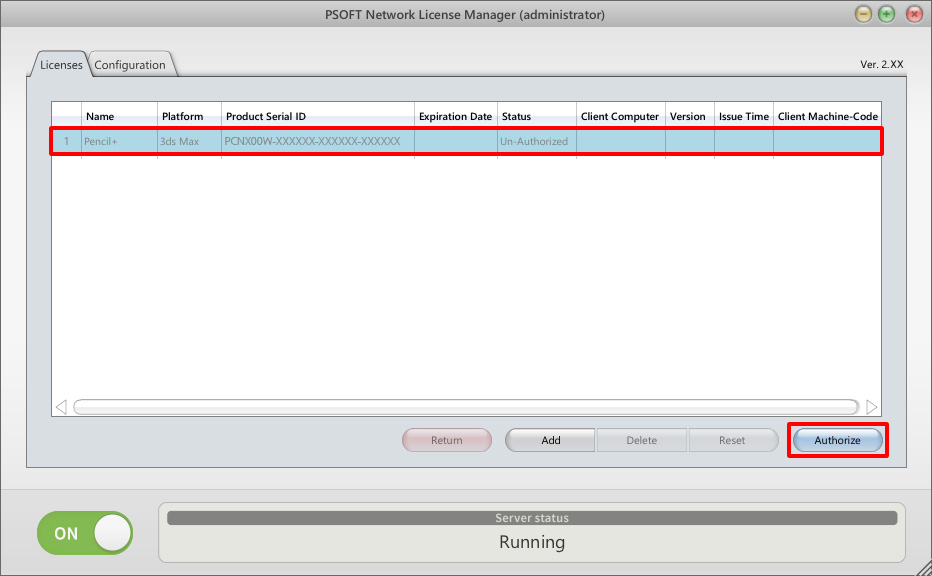
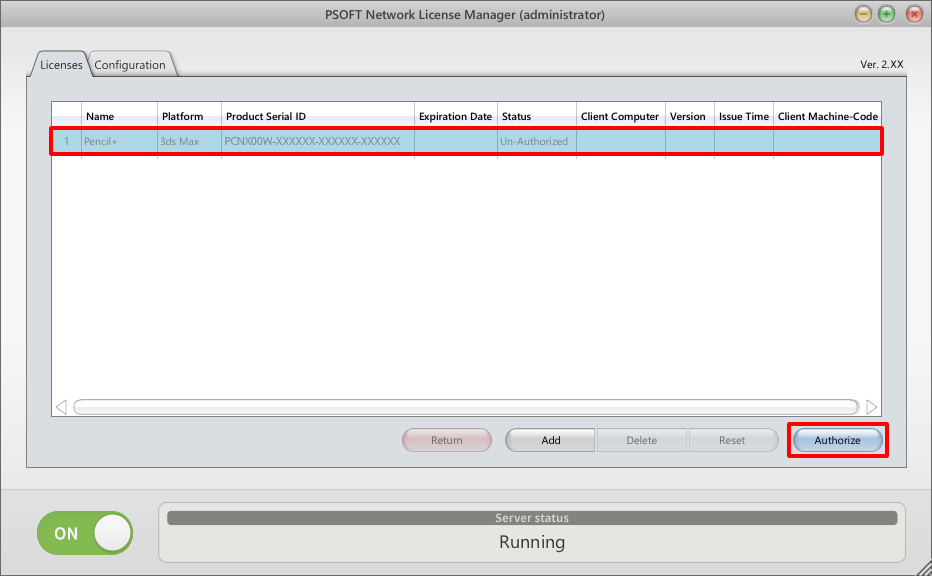
Step 1:Select the licenses you wish to authorize (you can select multiple licenses) and click [Authorize].
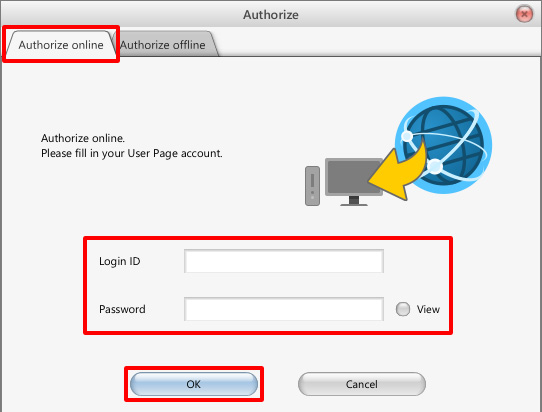
Step 2:Enter your login ID and password in the tab [Authorize online] and click [OK].
A confirmation dialog is shown. If there is no problem, click [OK].
Step 3:Check the status of the license. If it became [Available], the authorization is complete.

6-2. Offline Authentication / Authorization by Entering the License Key
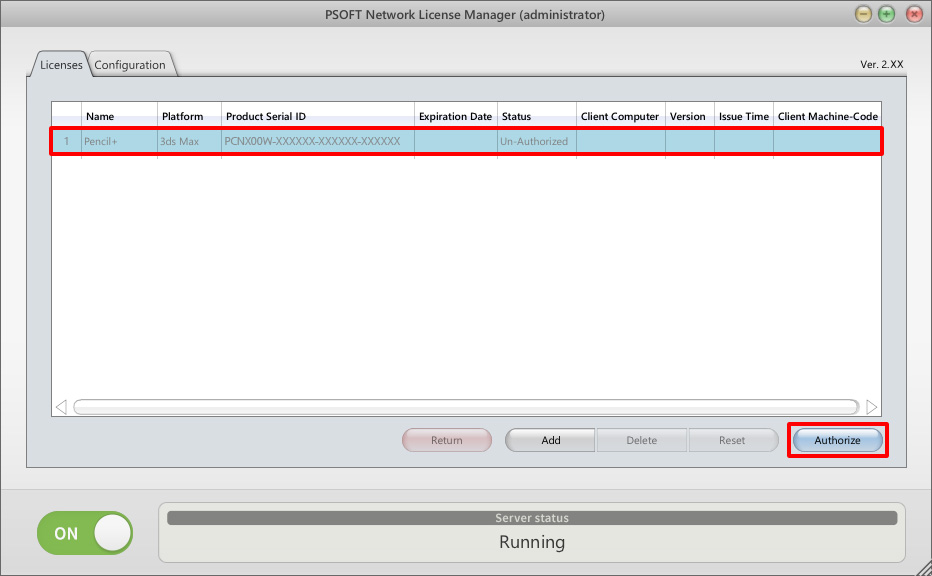
Step 1:Select one license to be authorized and click [Authorize].
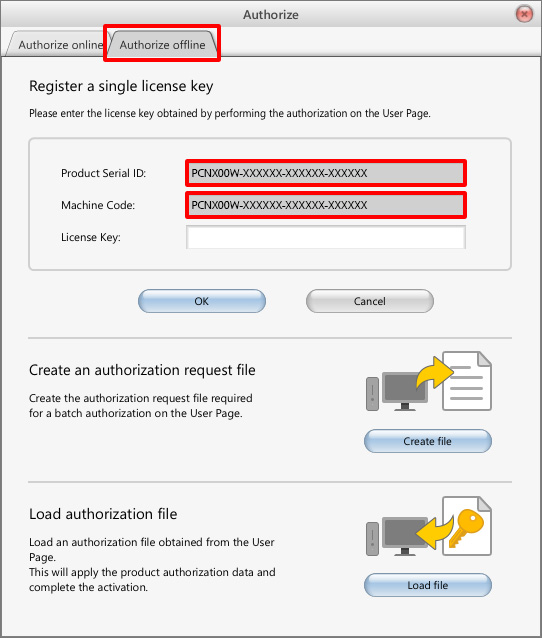
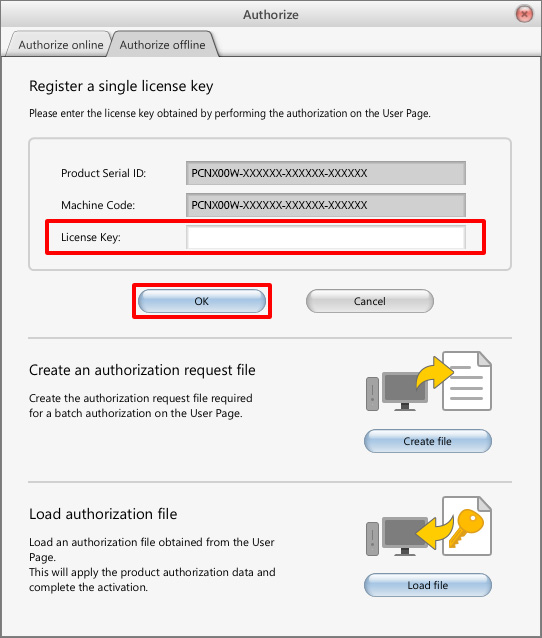
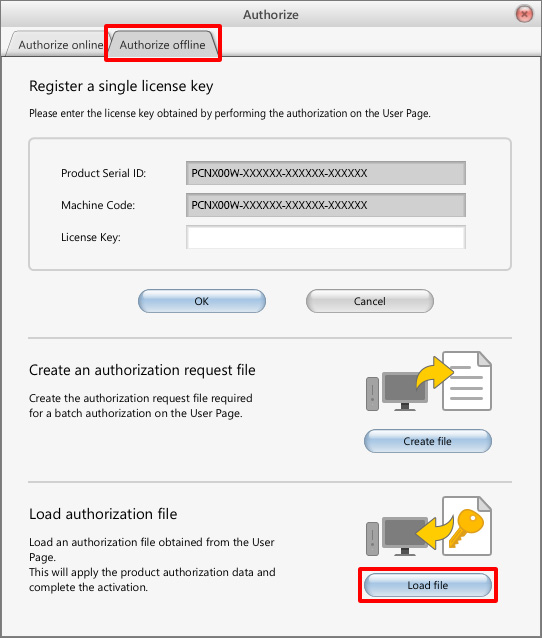
Step 2:Find the Product Serial ID and Machine Code in the tab Authorize offline.
Step 3:Log in to the User Page and click [Authorize].
User Page(https://www.psoft.co.jp/user/en/)
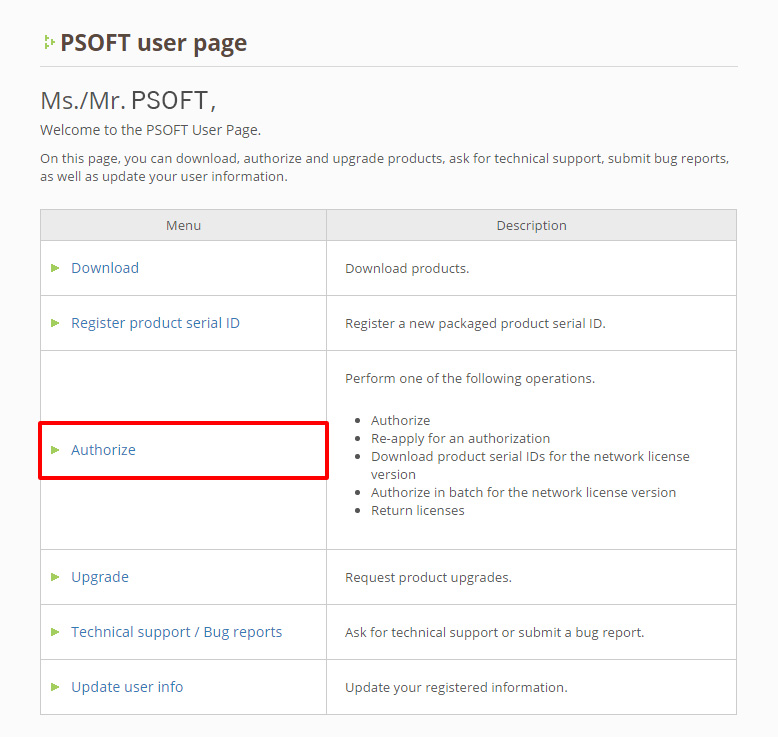
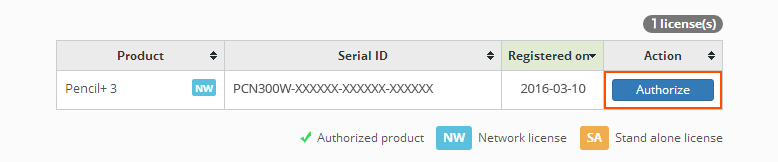
Step 4:Click [Authorize] next to the Product Serial ID matching the one obtained in Step
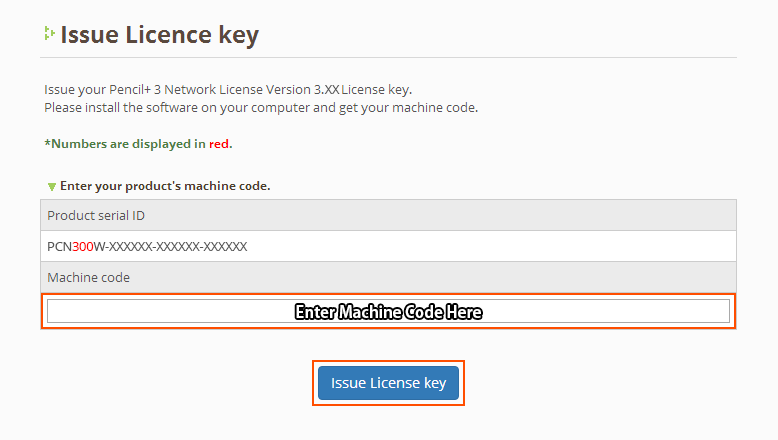
Step 5:Enter the Machine Code from Step 2 and click [Issue License key].
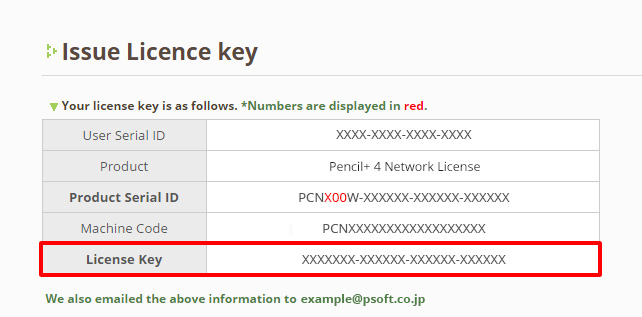
Step 6:Copy the displayed License Key.
Step 7:Enter the License Key copied in Step 6 and click [OK].
Step 8:Check the status of the license. If it became [Available], the authorization is complete.

6-3. Offline Authentication / Batch Authorization of Multiple Licenses
Step 1:Select the licenses you wish to authorize (you can select multiple licenses) and click [Authorize].
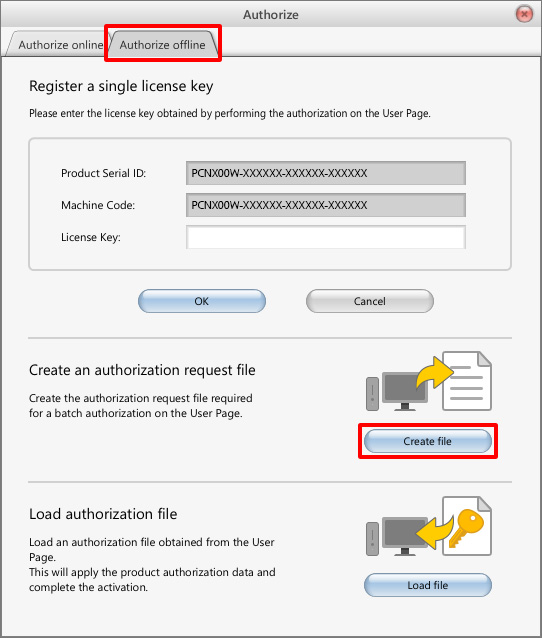
Step 2:In the tab Authorize offline, click [Create file].
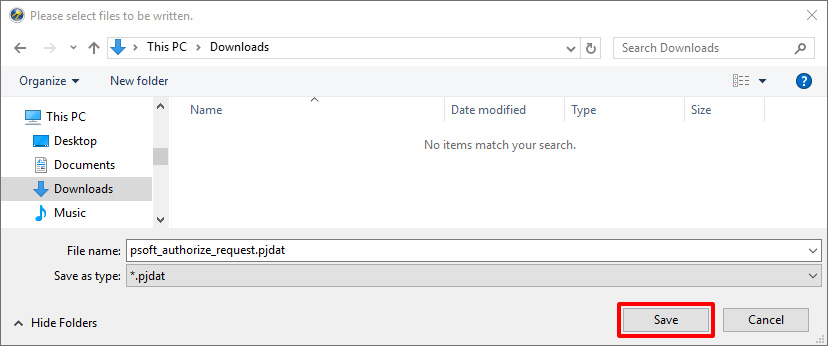
Step 3:Select a location to save the file and click [Save].
Step 4:Log in to the User Page and click [Authorize].
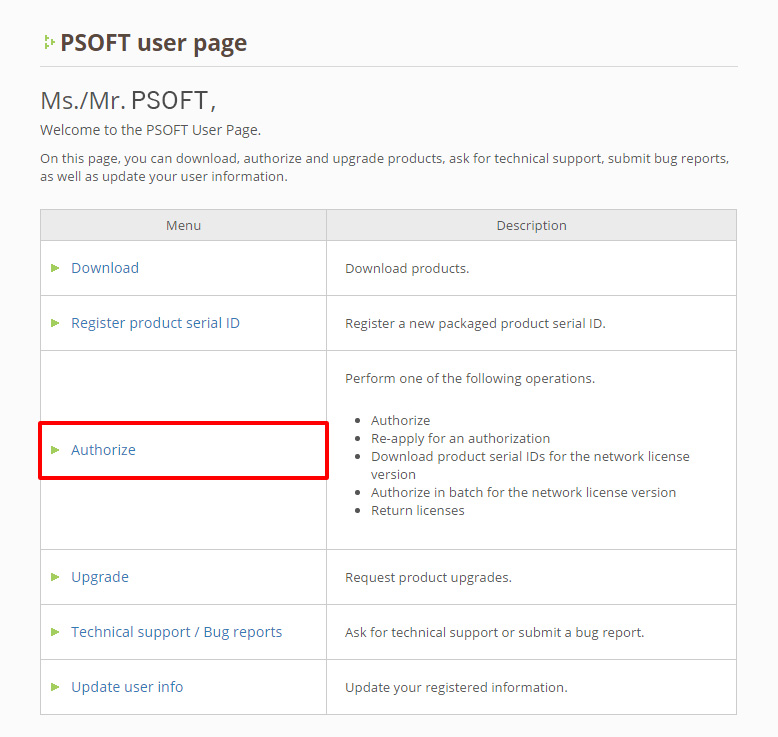
Step 5:Click [Batch authorization].
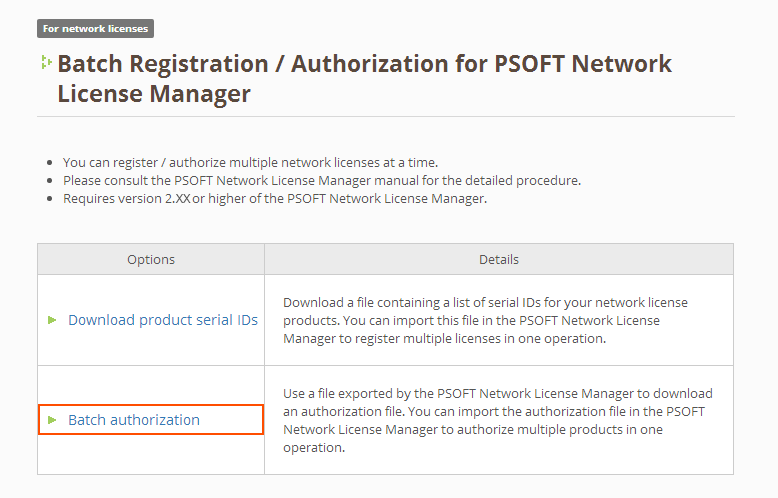
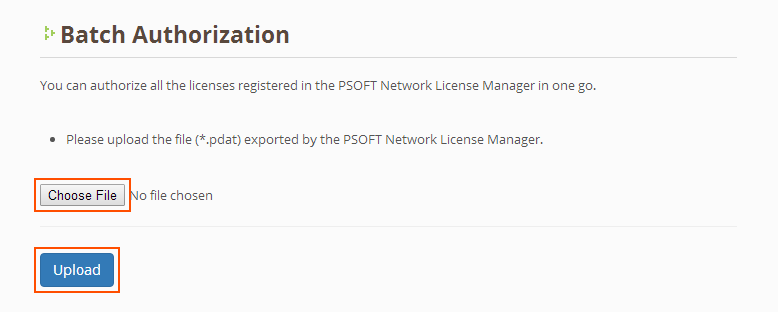
Step 6:Select the file saved in Step 3 and click [Upload].
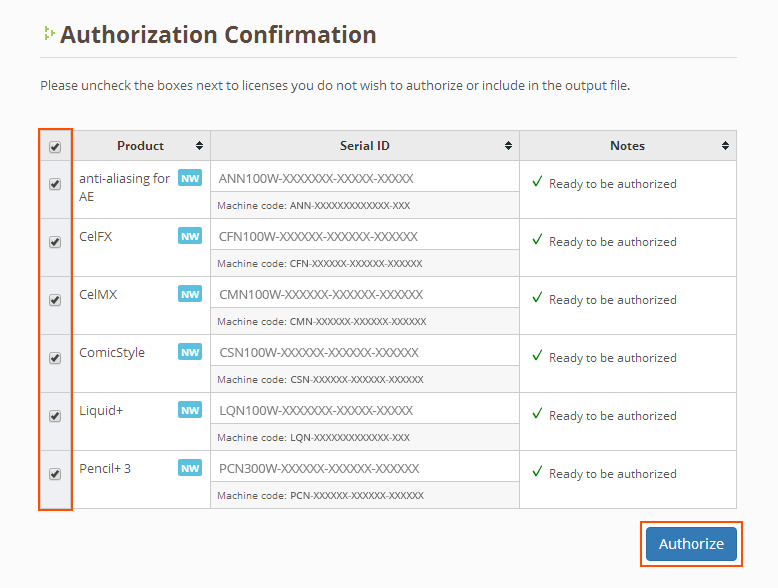
Step 7:Check in the boxes next to the products you wish to authorize and click [Authorize].
The license file will start downloading in the next screen.
Step 8:In the tab Authorize offline, click [Load file].
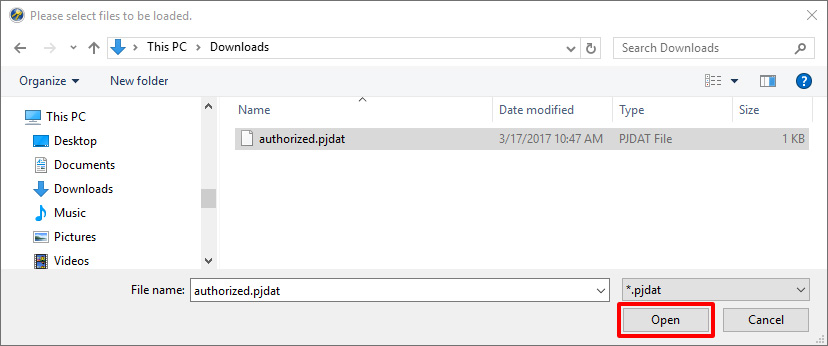
Step 9:Select the file downloaded in Step 7 and click [Open].
Step 10:Check the status of the license. If it became [Available], the authorization is complete.
